AI assistants and MCP
Point an AI assistant at your own numbers and ask questions in plain language. The server speaks Model Context Protocol, the open standard that lets clients like Claude Code and Cursor call external tools, so "how did the pricing page do last week" becomes a real query against your site instead of a guess.
It reads the same aggregates the dashboard draws, and it can set a site up: add a website, create goals and funnels, change tracking settings. It cannot alter or delete the analytics themselves.
How it works
Your client sends you to Statable in the browser, you sign in, and the connection is made. Nothing else is needed: no key to create, nothing secret to paste, no configuration beyond the server address above. If you would rather hold a token yourself, see Connect with a key.
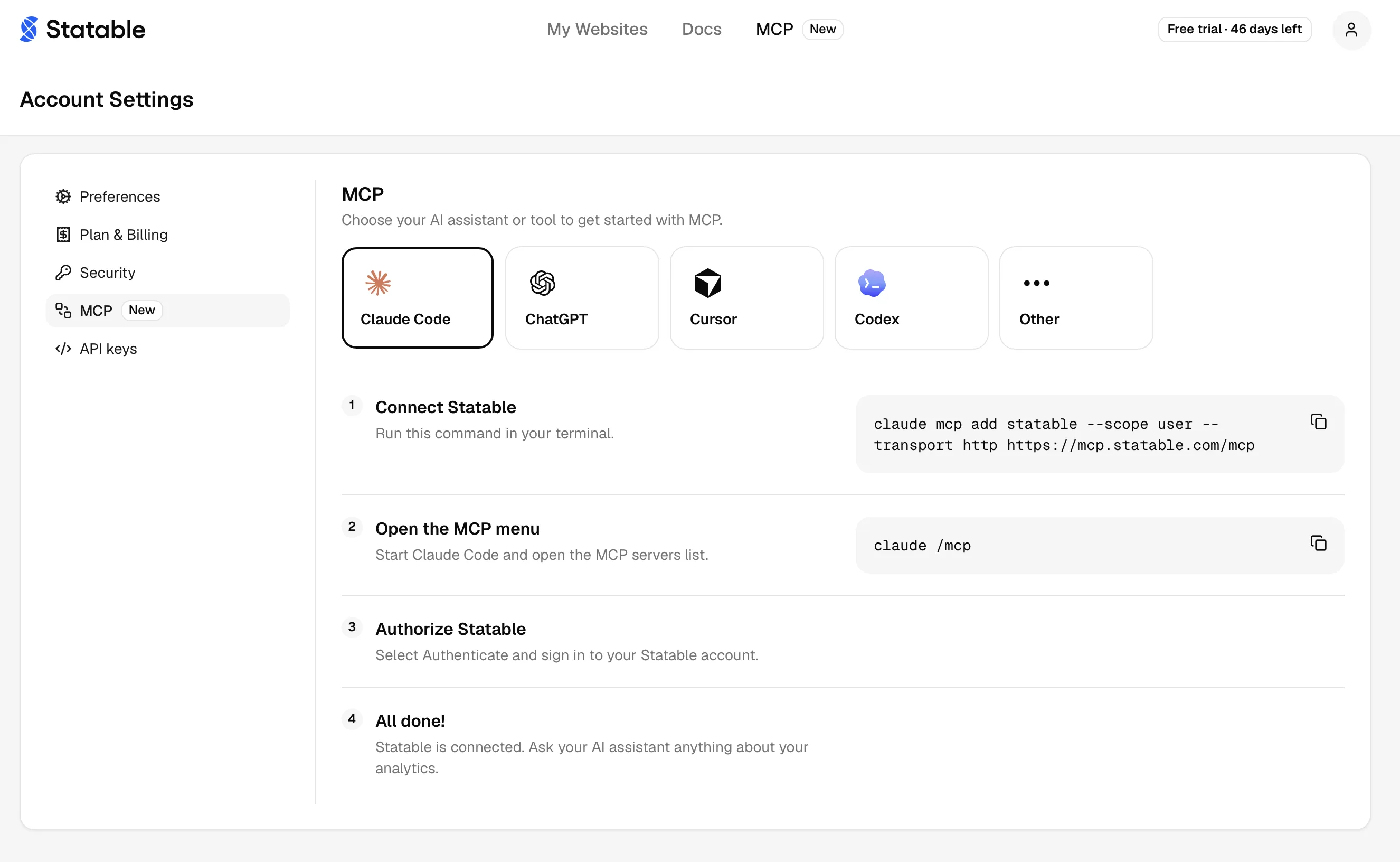
Settings → MCP carries the same steps as below, for whichever client you pick, with the server address already filled in.
You need an account first
MCP connects an account that already exists. If there is none yet, register over HTTPS and then connect: see Register without a browser.
Connect a client
Run this in your terminal:
Start Claude Code and open the server list with
/mcp.- Select Authenticate and sign in to your Statable account.
Using Claude in the browser or the desktop app?
Those connect through a custom connector rather than the command above, and who may add it depends on the plan.
- Pro and Max. Open Customize → Connectors, add a custom connector, and paste the server URL.
- Free. The same path, with a limit of one custom connector.
- Team and Enterprise. An organization Owner adds it once under Organization settings → Connectors → Add → Custom → Web. Note that this is the Owner role specifically, not any administrator. Everyone else then finds it under Customize → Connectors and signs in with their own Statable account, so each person reaches only the sites they already have.
An Owner can also limit what a connector may do across the whole organization, such as allowing reads while blocking writes, and a member cannot override that. If the setup tools refuse on a Team or Enterprise account while reading works, check that policy before the key's permissions.
- Open Settings → Security and login in ChatGPT and turn on Developer mode.
- Go to
chatgpt.com/plugins, select the plus button, name it Statable and paste the server URL, including the/mcpat the end. - Add Statable from the tools menu in a new chat, then sign in to your Statable account.
Developer mode is not on every plan
Custom MCP connectors ride on ChatGPT's Developer mode, which is available on Pro, Plus, Business, Enterprise and Education, and on the web rather than the mobile apps. There is no route in on the free plan.
On Business and Enterprise the switch belongs to an administrator, under Workspace Settings → Permissions & Roles. If step 1 shows you no Developer mode toggle, that is the reason, and the fix is a request to whoever administers your workspace rather than anything on our side.
- Create
~/.cursor/mcp.jsonfor every project, or.cursor/mcp.jsonfor just this one. Add this entry, save the file and restart Cursor:
Open Customize → MCPs and follow the prompt to sign in.
Run this in your terminal:
Sign in with
codex mcp login statable.- Check the connection with
codex mcp list. Statable should be listed as connected.
Any client that supports a remote MCP server over Streamable HTTP works. Authentication is OAuth 2.1, which most clients discover on their own from the server URL.
Clients that read a JSON config expect this shape. The server name can be anything.
Then follow your client's login prompt and sign in to your Statable account.
Install as a plugin
The server and a set of ready-made skills also come as one package, instead of the configuration above. The plugin lives in key-arg/statable-mcp and carries the hosted server and three skills. The first call sends you to Statable in the browser, as in Connect a client.
If you added the server earlier with claude mcp add, remove that entry with claude mcp remove statable --scope user, so there is one connection to manage.
Install the plugin from cursor.directory, or find Statable under Customize, and pick whether it applies to the project or to your account.
Installs the hosted server and the three skills.
Clients that read the Agent Plugins standard take the manifest at the root of key-arg/statable-mcp. To add only the skills to an agent that supports them, run:
Then connect the server as in Connect a client.
The local bridge is not part of the plugin: the plugin connects to the hosted server, which signs you in through the browser. A host that needs the bridge is set up by hand, with a key.
| Skill | What it does |
|---|---|
| Measurement plan | Answers "what should I track?" by reading your codebase or live site, then proposes a short plan of goals, funnels, custom events and properties. Once you approve it, adds the code and creates the goals and funnels |
| Weekly traffic report | Builds a Monday summary against the week before, with the sources and pages that moved |
| Traffic drop check | Breaks a fall or a spike down by source, page, country, device and campaign until one segment explains it |
Skills are instructions, not tools. They tell a client which of the tools below to call and in what order, so "why did traffic drop on Tuesday" runs as an investigation instead of a single query.
The measurement plan changes nothing before you agree to it. The plan lists every code edit and every goal or funnel it would create, and personal data such as emails or form input stays out of events. In Claude Code, ask "what should I track on this site?" or run /statable:statable.
What you grant
Signing in shows a consent screen listing what the client is asking for, and which sites it will reach.
Below the client's name, the screen says where you go once you allow: a website such as chatgpt.com, a program on this computer for a local client such as Claude Code, or an app that opens its own links. The name is whatever the client calls itself; the destination is checked by Statable. If it doesn't match the client you meant to connect, don't allow access.
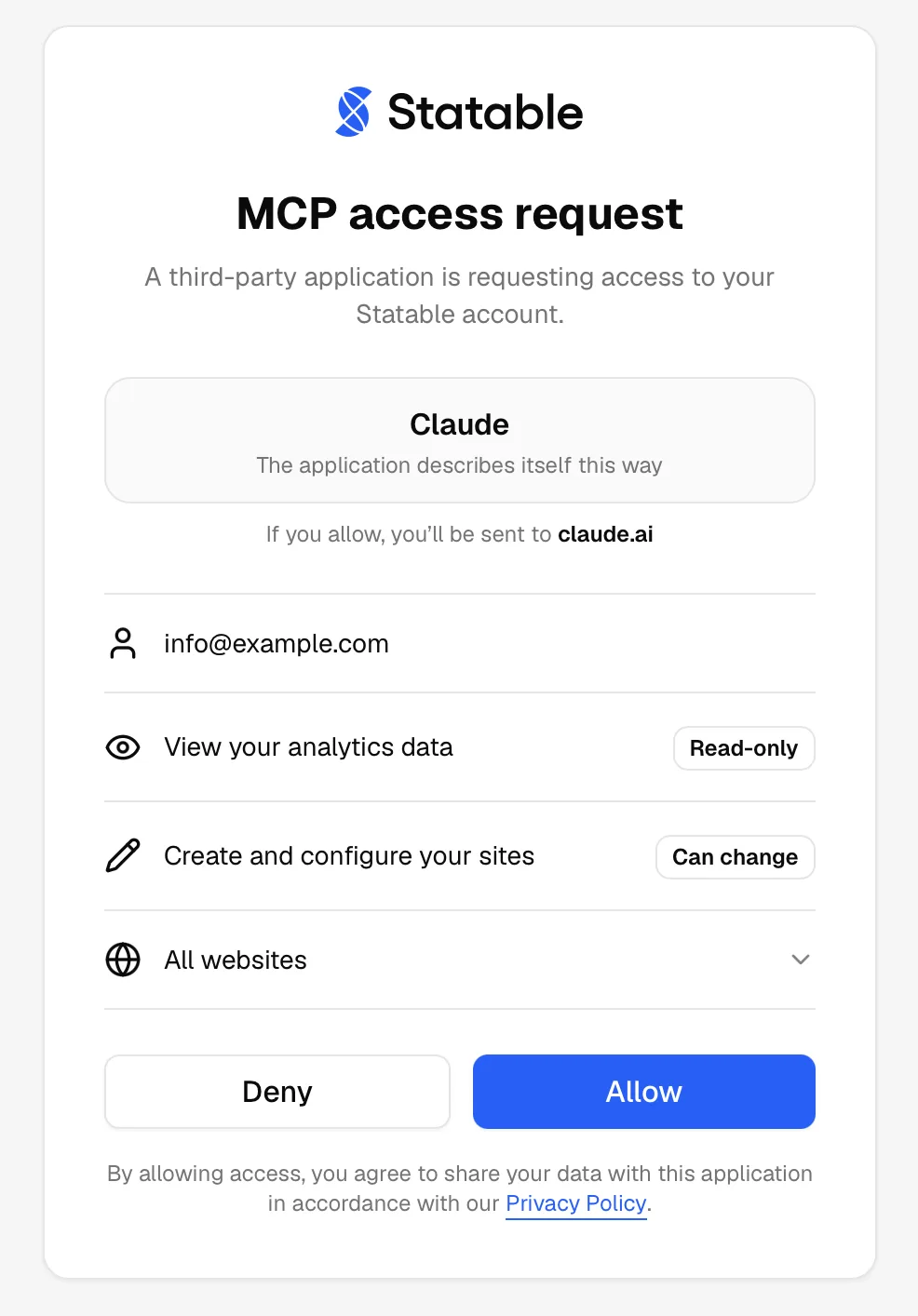
Two permissions exist:
| Permission | What it allows |
|---|---|
| View your analytics data | Read the numbers. Every connection has this |
| Create and configure your sites | Add sites, goals and funnels, and change tracking settings and filters |
A connection made today asks for both. Grant only the first if you want an assistant that can look but not touch: the nine setup tools are then hidden from it, so it never offers you an action that would fail.
The choice is fixed for the life of the connection. To widen a read-only connection, disconnect it and connect again, which runs the consent screen afresh.
Manage sites is a real permission
It can make a site's analytics readable by anyone with the link, and it can change which visitors are counted from now on. Grant it to a client you run yourself, not to one you are trying out.
What an agent can see
The same aggregates the dashboard draws, at either permission. No tool and no Stats API endpoint returns a single visitor or a single session. There is nothing to call, so no permission can grant it.
- IP addresses are used on arrival, then dropped. Statable reads the IP to find country, region and city and to compute the visitor hash. It is not stored. See Privacy.
- The visitor hash never leaves the server. It changes every day, is keyed with a secret only the backend holds, and no tool returns it. See Unique visitors.
- Query strings are cut at ingest. Tokens, emails or search terms after
?in a page URL never reach storage. UTM parameters are read out first and kept as campaign fields. - What your site sends comes back as sent. Page paths, UTM values and custom event properties are returned unchanged. Keep emails and customer IDs out of them.
- The only IP addresses a tool returns are ones you typed.
get_site_filterslists your IP blocklist, and read-only connections see it too.
Under our Data Processing Agreement, a client you connect and the model behind it act for you, not as our sub-processors.
Connected tools
Settings → MCP lists every client you have connected, what each one reaches, and when it was last used or, if it has not been, when it was connected. Disconnect ends a connection immediately: its tokens stop working on the next call, and the client has to sign in again to come back.
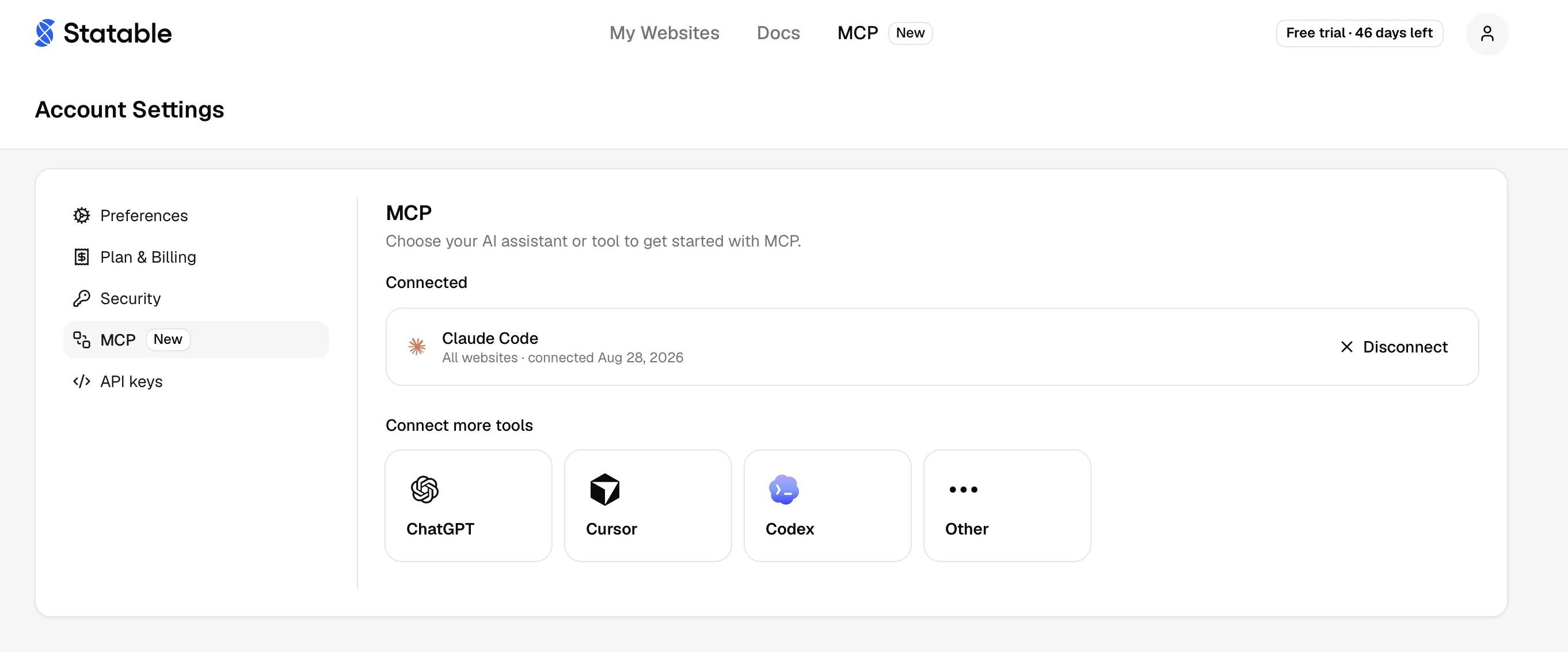
Disconnecting is the right move for a machine you no longer use, a client you were only testing, or any connection you did not expect to see.
Available tools
Twenty-five tools. Sixteen read, nine change something, none delete.
Each connection sees only the tools its permissions cover. A read-only one sees the sixteen below and nothing more.
Each takes a site, either the numeric site ID or the domain, which you can omit when the connection is locked to a single site. get_subscription is the exception and takes no arguments at all.
Reading
| Tool | Returns |
|---|---|
list_sites | Sites you can read, with timezone and, optionally, headline metrics |
query_stats | The full query surface: totals, time series or a top-N breakdown, with filters |
top_pages | Most visited pages |
top_sources | Where traffic came from |
top_countries | Visitors by country |
top_custom_events | Custom events ranked by count |
top_goals | Goals ranked by conversions, with conversion rate |
list_goals | The goals a site measures, as configured |
list_prop_keys | Custom property keys a site has recorded |
list_funnels | Saved funnels, and the IDs funnel_report needs |
funnel_report | One funnel run out to per-step visitors, conversion rate and dropoff |
current_visitors | Visitors active in the last five minutes |
visitors_over_time | Daily visitors and pageviews |
get_tracking_snippet | The script tag to install, and the URL it loads |
get_site_filters | Hostnames, blocked IPs, countries and public access, in one answer |
get_subscription | The account's plan state, including a trial and when it ends |
query_stats covers everything the other reports do and more. The rest are shortcuts for the questions people ask constantly.
Setting up
These need Create and configure your sites.
| Tool | Does |
|---|---|
create_site | Adds a website. A URL the account already has is refused, not returned |
update_site | Changes URL, timezone or week start |
create_goal | Adds a goal: a custom event, a page, or a scroll depth |
update_goal | Replaces a goal's definition |
create_funnel | Adds a funnel of two or more steps |
update_funnel | Replaces a funnel's definition |
get_tracking_settings | Reports which tracking features the installed script includes |
update_tracking_settings | Sets them, then rebuilds and republishes the script |
update_site_filters | Sets hostnames, blocked IPs, countries and public access |
get_tracking_settings only reads, but sits behind the same permission as changing them, because that is how the same setting is gated everywhere else.
update_site_filters cannot take public access away from a hobby site while the account has no paid subscription: the attempt comes back as hobby_always_public.
Dates and time buckets follow each site's own timezone, the one set under Site settings → General.
Three rules worth knowing
Update replaces. update_goal, update_funnel and update_tracking_settings take the whole definition. A field left out is cleared, not kept, so read the current state first and send it back with your edit applied. update_site is the exception: it leaves omitted fields alone.
Filters replace by section. update_site_filters leaves out what you leave out, but a section you do send replaces that setting whole. Sending a blocked country also clears the country allow list, because the two are one setting.
Filtering is not deletion. Blocking a country or an IP stops new traffic being counted. It does not remove what was already collected.
What to ask
The client picks the tool, so ask for the answer rather than the endpoint:
- How many visitors did example.com get last week?
- Top 10 countries for the last 30 days.
- Which pages get the most traffic this month?
- How is my signup funnel converting?
- Add a goal for the Signup event on example.com.
- Anyone on the site right now?
Limits
Aggregates only. Tools return counts and rates, the same numbers the dashboard draws. There is no tool that hands back raw visitor-level rows.
Configuration, not data. What the setup tools change is how a site is measured. No tool edits, backfills or removes a single collected event.
No deletion. Removing a site, a goal or a funnel stays a dashboard action.
Rate limits. Two hourly windows apply, one per connection and one across your whole account. Both scale with your plan. Over the limit, requests answer 429 with a Retry-After header, and your client reports the tool call as failed until the window resets.
Your connection's reach. A connection never sees more than you do. If your own access to a site ends, the connection stops reading it too.
Connect with a key
An API key still works, and is the better fit for a script or a server that cannot open a browser. Keys are created in the dashboard and shown once.
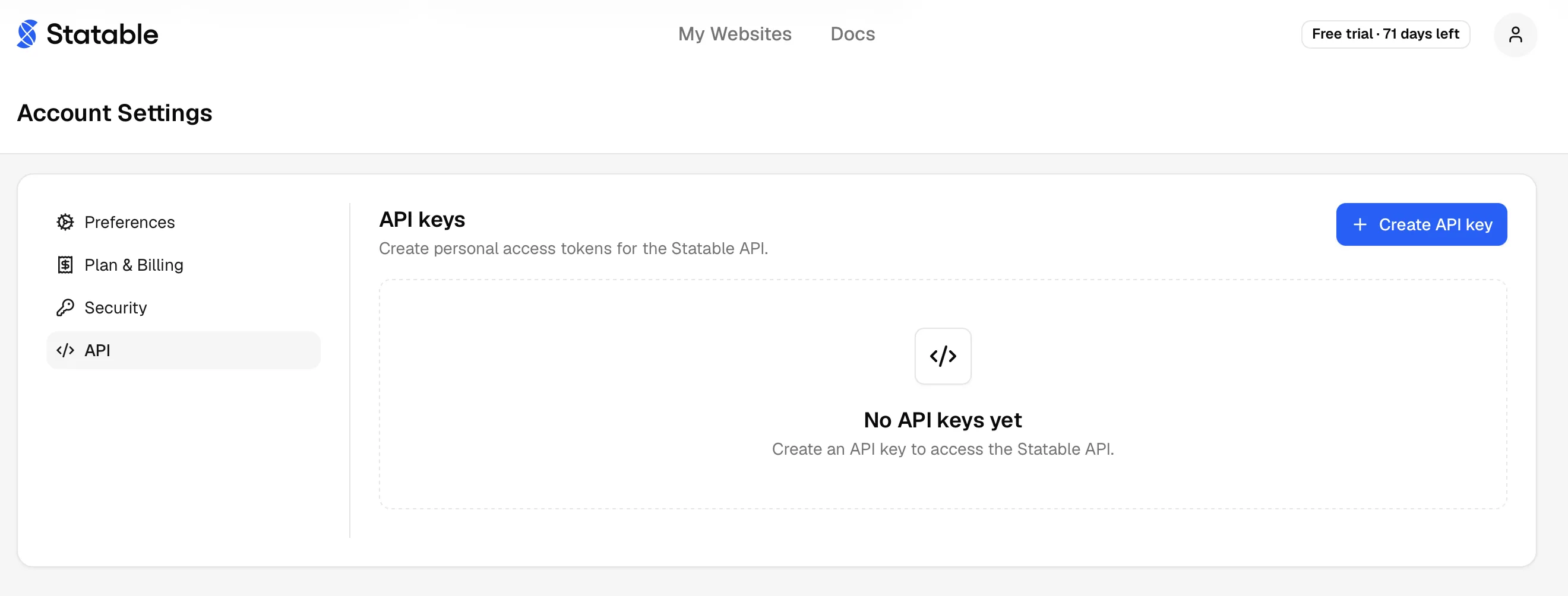
- Open Settings → API keys.
Select Create API key.
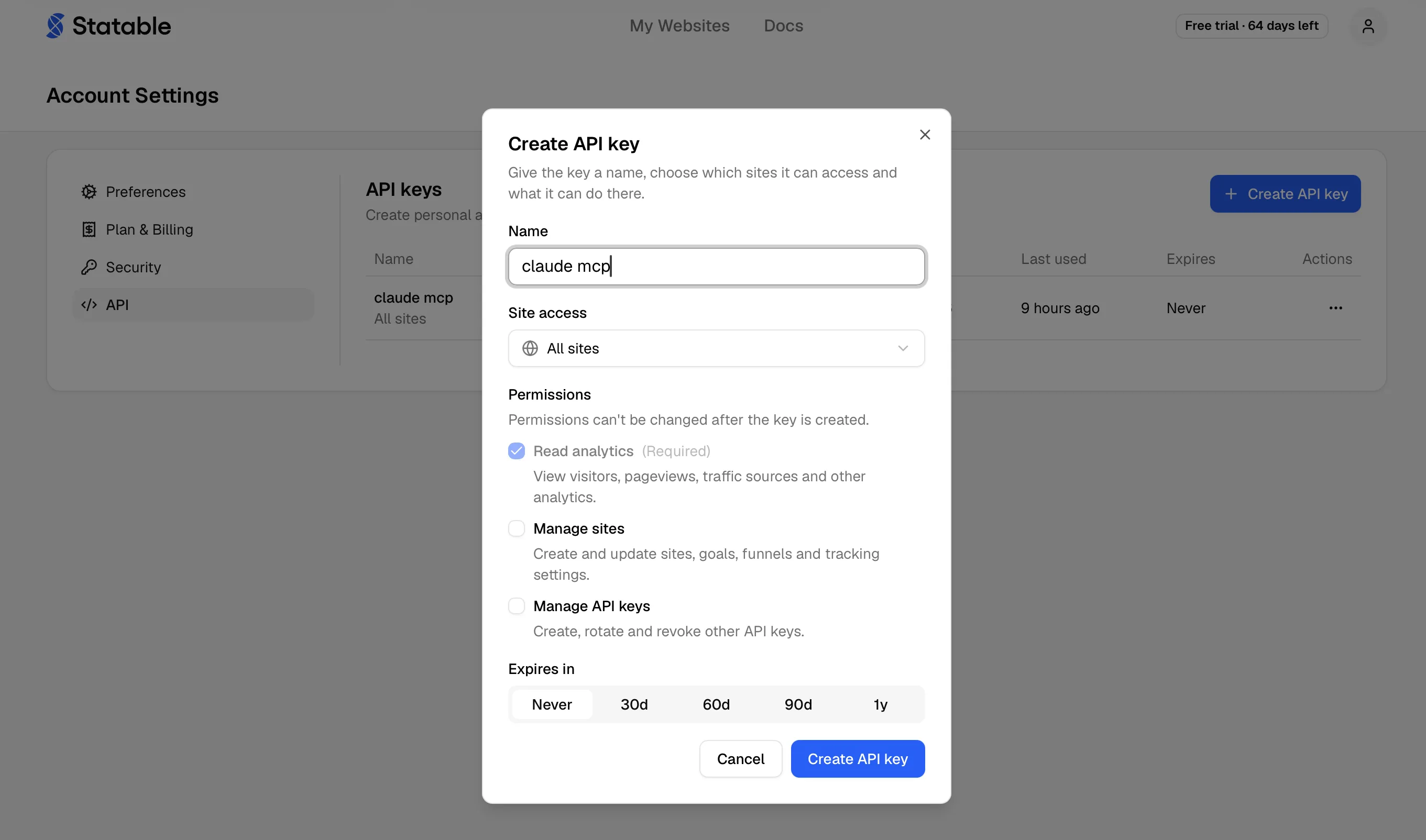
Fill in the dialog:
Field What it does Name A label, up to 100 characters. Name it after the machine or client that will hold it. Site access All sites, or one specific site. A single-site key can never read anything else. Permissions Read analytics is always on. Add Manage sites for the setup tools. Expires in Never, 30d,60d,90dor1y.Copy the token from the Your API key dialog. It starts with
stbl_and is stored only as a hash, so this is the one time it is shown.
Point the client at the same server URL and send the token as a header:
claude mcp add --transport http statable https://mcp.statable.com/mcp \
  --header "Authorization: Bearer stbl_YOUR_KEY"
Clients that read a JSON config take it as "headers": { "Authorization": "Bearer ${STATABLE_API_KEY}" }. Read the token from an environment variable, as here, whenever the config file is shared or committed.
The token is a secret
Anyone holding it can read every site the key covers, and change what the key's permissions allow. Keep it on your own machine or in a server-side secret store, never in a repository or in browser JavaScript. Revoke a leaked key immediately, then create a replacement.
Full detail on keys, permissions, rotation and expiry lives in Authentication.
Clients that only run a local server
Some hosts cannot open a browser and cannot send a header either. They only know how to launch a command and talk to it over stdin. For those there is @statable/mcp, a small bridge published on npm: it runs locally, forwards every call to the same mcp.statable.com/mcp with your key, and keeps nothing on disk.
Reach for it when the host only accepts a local command, or when the client is a script, a CI job or a sandbox. Claude Desktop can also use it if a custom connector is not an option on your plan.
Create a key first, exactly as above, then point the host at the package. Claude Desktop, in claude_desktop_config.json:
{
  "mcpServers": {
    "statable": {
      "command": "npx",
      "args": ["-y", "@statable/mcp"],
      "env": { "STATABLE_API_KEY": "stbl_YOUR_KEY" }
    }
  }
}
Cursor reads the same shape from ~/.cursor/mcp.json. Claude Code takes it as one line:
Two settings, each available as an environment variable or a flag:
| Setting | Environment | Flag | Default |
|---|---|---|---|
| API key | STATABLE_API_KEY | --api-key | none |
| Endpoint | STATABLE_MCP_URL | --url | https://mcp.statable.com/mcp |
Without a key the bridge still starts and still lists its tools, so a host may show it as connected while nothing works. The first call says so and explains how to add one.
The package is MIT licensed.
Where to find it
The server is listed where MCP clients and their users look for one, so you can confirm it exists without taking this page's word for it.
| Where | Entry |
|---|---|
| Official MCP Registry | com.statable/analytics |
| Smithery | smithery.ai/servers/statable/analytics |
| Glama | glama.ai/mcp/connectors/com.statable.mcp |
| cursor.directory | cursor.directory/plugins/statable |
| Claude Code marketplace | key-arg/skills |
| npm | @statable/mcp |
| Source | key-arg/statable-mcp |
All of them describe the same server. The registry entry and the two catalogues point at the hosted endpoint, npm carries the stdio bridge above, and cursor.directory and the Claude Code marketplace list the plugin with its skills.
Common problems
| Symptom | Cause |
|---|---|
| Client reports 401 or "unauthorized" | The connection was disconnected, or the sign-in never finished. Reconnect from the client. On a key, confirm the header reads Bearer stbl_… and check the key under Settings → API keys |
| A setup tool answers 403 | The connection or key is read-only. Disconnect and connect again to grant Create and configure your sites, or create a key with Manage sites |
| Tools connect but list one site | Access is locked to that site. Reconnect for all sites, or create an all-sites key |
| A site is not found by name | Sites are stored as the owner typed them, often as a full URL. Call list_sites and pass the numeric site_id |
| Empty results on a new site | Nothing has been collected yet. Check Verify installation |
Reference
- Protocol version
2025-06-18, with2025-03-26and2024-11-05also accepted. - Server identifies itself as
statable, version1.0.0. - Authentication is OAuth 2.1 with PKCE, authorization code plus refresh token. API keys are accepted on the same endpoint.
- A token issued by signing in works on this server only. It is not a general-purpose API credential.
- Transport is stateless. Every call is one HTTP POST answered with one JSON response, so nothing is kept between calls.
Ready to take control of your web analytics? Try Statable free for 30 days. No credit card required, full feature access, built for GDPR. Start your free trial or view a live demo.