Migrate from Google Analytics 4 to Statable
Switching from GA4? You don't have to start at zero. Statable imports historical reports from any GA4 property you can read, keeps them next to the events your tracking script collects from now on, and joins the two into one continuous timeline. Date ranges from before you installed Statable fill in, and year-over-year comparisons work from the first day.


Before you start
You need:
- A Statable site with the tracking script installed. Imported data lives next to native data, so the site has to exist first. New here? Start with Add your first website and Install the tracking script.
- A Google account that can see the GA4 property you want to import. Statable asks for read-only access and nothing more.
- Some patience on big properties. Google limits standard GA4 properties to 200,000 API tokens a day and 40,000 an hour. Most imports fit comfortably. A busy site with years of history can run out, and the import then waits for the quota to refill and carries on by itself.
Import is not offered on hobby sites (.edu, .github.io, .gitlab.io): the Import item does not appear in their settings.
Reports, not raw events
Statable imports aggregated daily reports through the GA4 Data API. Google does not hand out raw events that way for ordinary properties, and daily reports are enough to rebuild every dashboard metric except the ones listed under native-only.
Import your history
Everything happens in Site settings → Import.
Starting from scratch? You can create the sites straight from GA4 instead: see Add sites from Google.
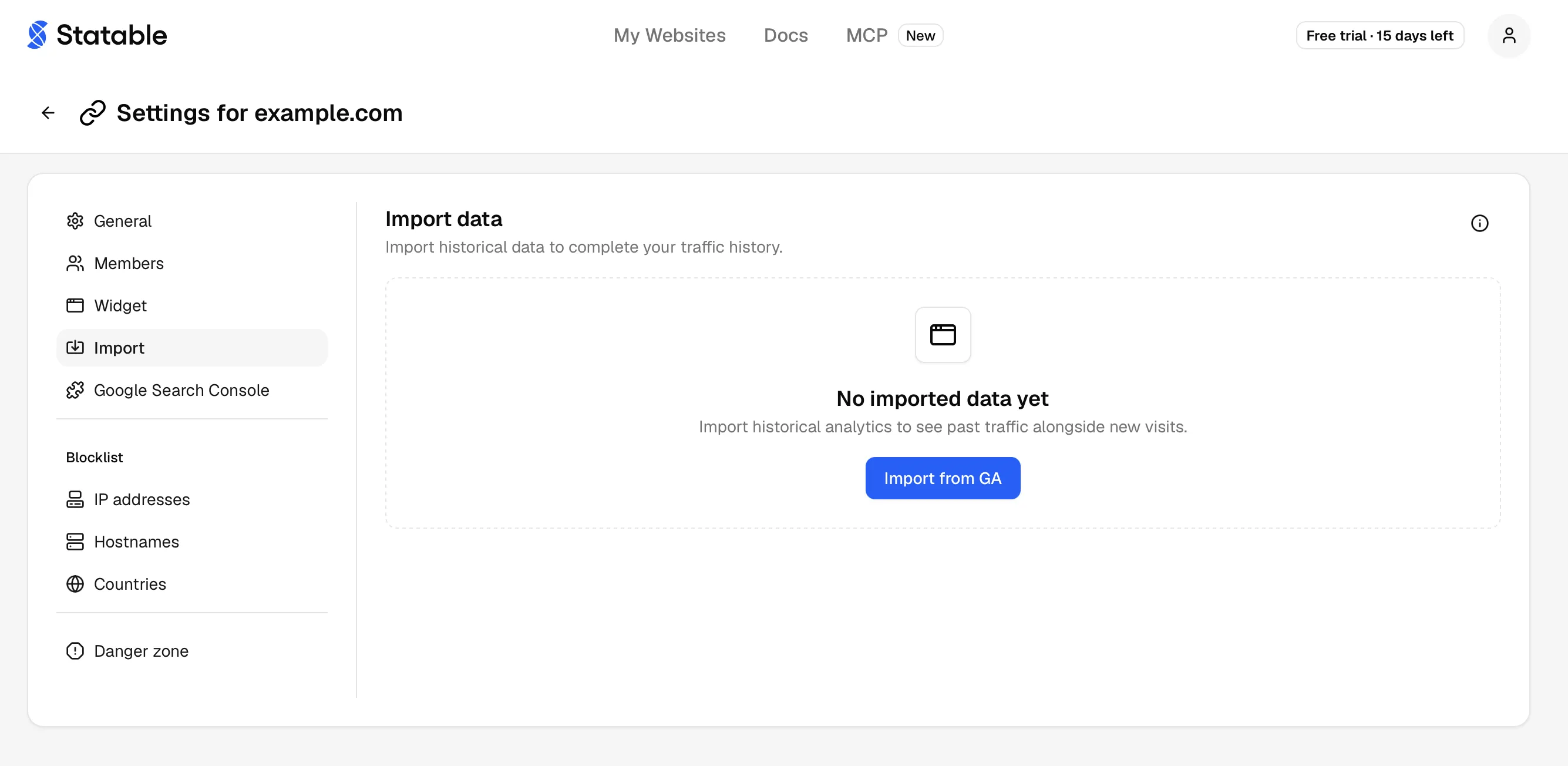
Step 1, open Import
A site with nothing imported shows No imported data yet and one button, Import from GA.
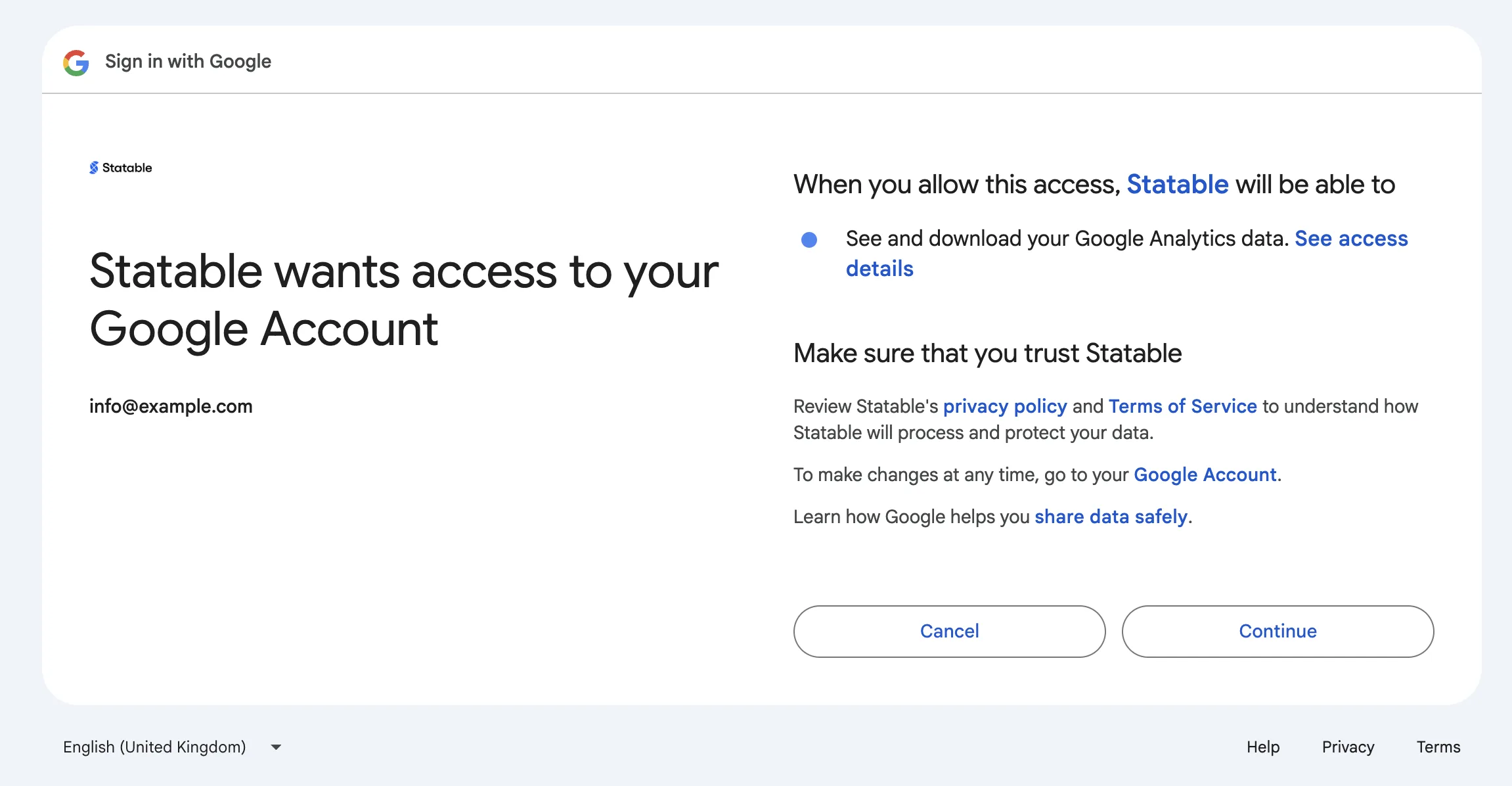
Step 2, authorize Google
Import from GA takes you to Google's consent screen. Statable asks for the https://www.googleapis.com/auth/analytics.readonly scope and nothing else: read-only, no write or admin rights. The tokens Google issues are stored encrypted, and Statable never sees your Google password.
Once you approve, Google sends you back to the Import page and the import dialog opens by itself.
Step 3, pick a property and dates
The dialog, Import data from GA, has two fields.
- GA property. Every GA4 property your Google account can read. The first one is selected for you. If the Google account has no properties Statable can read, a No data to import dialog opens instead, with Connect another account. See Troubleshooting.
- Date range.
- Import all available data is the default, and shows the exact span and the number of days before you start.
- Choose a custom date range opens a calendar. Both ends are inclusive.
Whichever you pick, two limits apply:
- Today is never imported. GA4 is still counting it, so the last day is yesterday, in the GA4 property's own timezone.
- Imported days stop where your own tracking starts. The import ends on the day before Statable first recorded a visit for this site. Imported and native numbers are added together, so an overlapping day would be counted twice.
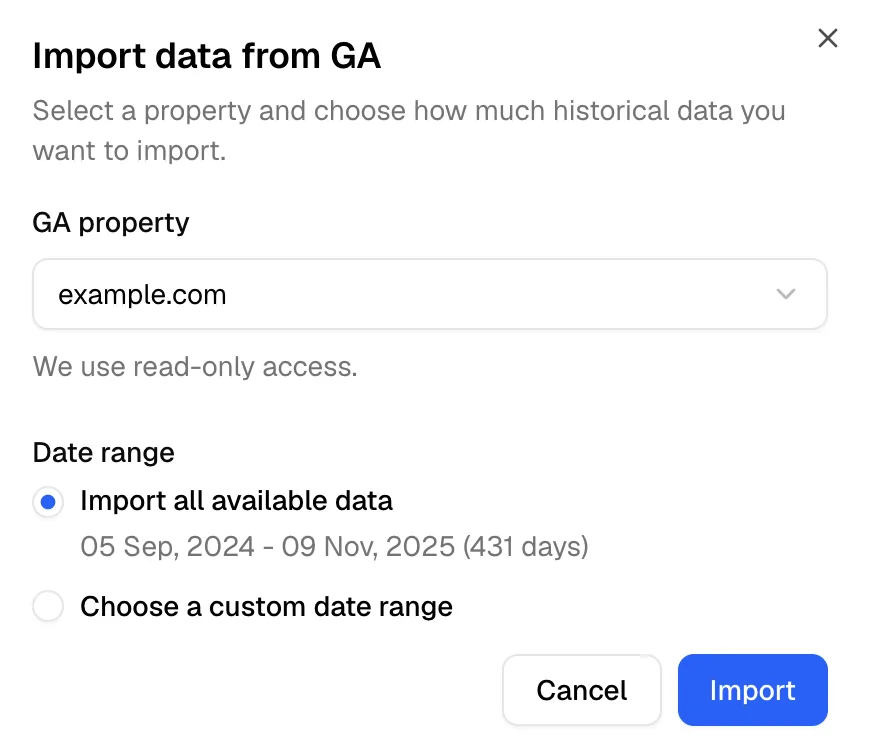
Step 4, start the import
Click Import. The dialog closes, Import started successfully confirms it, and the import appears in a table on the same page.
It runs on Statable's servers, so you can close the tab. A site runs one import at a time.
Step 5, watch progress (or don't)
While the import runs, the table refreshes every 5 seconds:
| Column | What it shows |
|---|---|
| Import source | The property name, with a spinner while running and a check mark when done |
| Date Range | The span being imported |
| Progress | Up to: the latest day finished so far, or Starting… before the first one |
A banner above the table, This may take some time, stays up while it runs. Large imports take hours.
Nothing reaches your reports until the whole import is done. Then Import completed appears, and every report that supports imported data (list below) shows it at once.
What's imported
Statable reads 11 dimensions from the property, plus country, region and city, one day at a time:
| Dimension | GA4 field | Shows up in |
|---|---|---|
| Page paths | pagePath | Top Pages, page-level breakdowns |
| Entry pages | landingPage | Entry Pages |
| Browsers | browser | Tech Insights → Browsers |
| Operating systems | operatingSystem | Tech Insights → OS |
| Device categories | deviceCategory | Tech Insights → Devices |
| Sources | sessionSource | Traffic Sources → Sources |
| Channels | sessionDefaultChannelGroup | Traffic Sources → Channels |
| Mediums | sessionMedium | Traffic Sources → UTM Mediums |
| Campaigns | sessionCampaignName | Traffic Sources → UTM Campaigns |
| UTM content | sessionManualAdContent | Traffic Sources → UTM Contents |
| UTM term | sessionManualTerm | Traffic Sources → UTM Terms |
| Country, region, city | countryId, region, city | Geo Analytics |
Every dimension carries the same metrics: active users as Visitors, sessions, screen page views as Pageviews, average session duration as Session Duration, and bounce rate.
What's native-only
Some reports have no imported equivalent, because GA4 does not export the field or the metric is Statable's own. For the imported period they stay empty:
- Exit pages and folders. Built from native events only.
- Status codes and errors. They come from your tracking code, not from GA4.
- Scroll depth. GA4 does not export it.
- Engagement time. GA4 has only a session-level average duration, which becomes Session Duration. Engagement time is measured by Statable's own tracking code, so imported days have none.
- Custom events and custom properties. Sent by your own tracking calls, with no GA4 equivalent.
- Goals. Statable goals run on native events. Conversions tracked in GA4 do not carry over.
- Realtime. The last 30 minutes need live events.
How mixed data shows
Statable splits the timeline at the day your tracking script first sent data, called Stats Start:
- Before Stats Start, reports that support imported data fill in from the import.
- From Stats Start on, every report uses native events, with the full feature set.
When a date range spans both sides, Statable queries both and merges them. Counts (Visitors, Sessions, Pageviews) are added. Averages (Bounce Rate, Session Duration) are weighted by sessions, so a quiet imported month cannot dilute a busy native week. The dashboard marks neither side: charts and tables look the same.
One filter at a time on imported data
Reports that mix imported and native data accept a single filter, and only on fields the import understands: page, entry page, source, channel, browser, device, OS, country, region, city, UTM content and UTM term. Anything else is native-only: UTM source, medium or campaign, a browser or OS version, hostname, exit page, referrer, custom properties, events, goals, and any second filter stacked on the first. The filter still works, but imported days drop out of the report until you remove it. UTM source, medium and campaign values are imported and visible in their reports; only filtering by them is native-only.
The dashboard warns you when a filter hides imported days. A notice, Imported history is hidden, appears above the reports. In the filter menu, fields that don't work on imported data are greyed out. Hover over one to see why.
Replace an import
To import again, with a different property or date range, or after fixing access, click Import from GA at the top of the Import page. If data is already imported, Statable first opens Replace existing GA import: the new import is built in the background and swaps in only once it finishes. Click Continue to pick a property and dates.
Until then your current imported data stays in the reports. An import that fails, waits on quota or is stopped leaves the old one untouched.
Remove imported data
In the table, click the trash icon on a finished import. The dialog, Remove GA import, asks you to type remove; then click Remove import. GA import removed confirms it, and reports go back to native data only.
This removes everything imported for the site, whatever dates the import covered. Native data is not touched.
Data cannot be removed while an import is running. Stop the import first.
Stop a running import
Click the X on the running import. Stop GA import? asks you to confirm; click Stop import.
The partial data is discarded rather than published, so your reports stay exactly as they were. The import leaves the table, and a Last import was stopped notice takes its place. If an import fails on its own, the notice reads Last import failed and says why. Either way you can start a new one whenever you like.
Troubleshooting
The property I want isn't in the list
The list shows the properties the Google account you authorized can read. If one is missing, you most likely signed in with a different Google account, or that account has no access to the property. Ask the property's GA4 admin to add you, or start again and choose the right account on Google's screen.
Progress hasn't moved for an hour
Most likely the import is waiting on Google's quota, not stuck. When the hourly limit runs out it resumes at the top of the next hour; when the daily limit runs out, just after midnight Pacific time.
Will my dashboard be empty during the import?
No. Your own tracking keeps working as usual. Imported data appears all at once when the import completes.
Can I keep GA4 running while I evaluate Statable?
Yes. Both can collect from the same site at the same time without interfering. Many teams run them side by side for a month before switching GA4 off.
Can I import from Universal Analytics?
No. Google retired the Universal Analytics API in mid-2024, and the importer only speaks to GA4.
How close is imported data to what GA4 shows?
The numbers are the ones GA4 returns through its reporting API. Differences against the GA4 interface are the same ones you would see comparing that interface to the API directly: usually small thresholding differences on low-traffic properties, and timezone handling.
What about custom dimensions or user properties?
They are not imported. Custom properties exist only in native data: once your tracking sends one, for example window.statable.t('Event', { plan: 'pro' }), it becomes available as a filter in the dashboard.
After the import
- Set up Goals matching the conversions you measured in GA4, see Goals. Goals only fire on native events, so they start counting from the moment you create them.
- Recreate Custom Events that matter, see Custom events.
- Configure a Public Dashboard to share traction publicly, see Public dashboard & sharing.
- Cancel GA4 when you're confident Statable has the data you need. No rush. Keeping both running has no downside.
Ready to take control of your web analytics? Try Statable free for 30 days. No credit card required, full feature access, built for GDPR. Start your free trial or view a live demo.