WordPress
There are three ways to get Statable onto a WordPress site. The official plugin is the shortest of them: it connects with a code from your inbox, puts the script on your pages itself, and then draws your analytics inside wp-admin. The other two put the snippet there by hand, which is what you want if you would rather not add a plugin, or if something else already manages your header.


This guide covers single-site, multisite, and WooCommerce. Works on classic and block (FSE) themes, WordPress 6.3 and newer, and PHP 7.4+.
Option 1: The official plugin (recommended)
Open Plugins → Add New, search for Statable Analytics, install and activate it. It is also on wordpress.org if you would rather download the zip and upload it yourself.
After activation a top-level Statable item appears in the wp-admin menu. Everything below lives there.
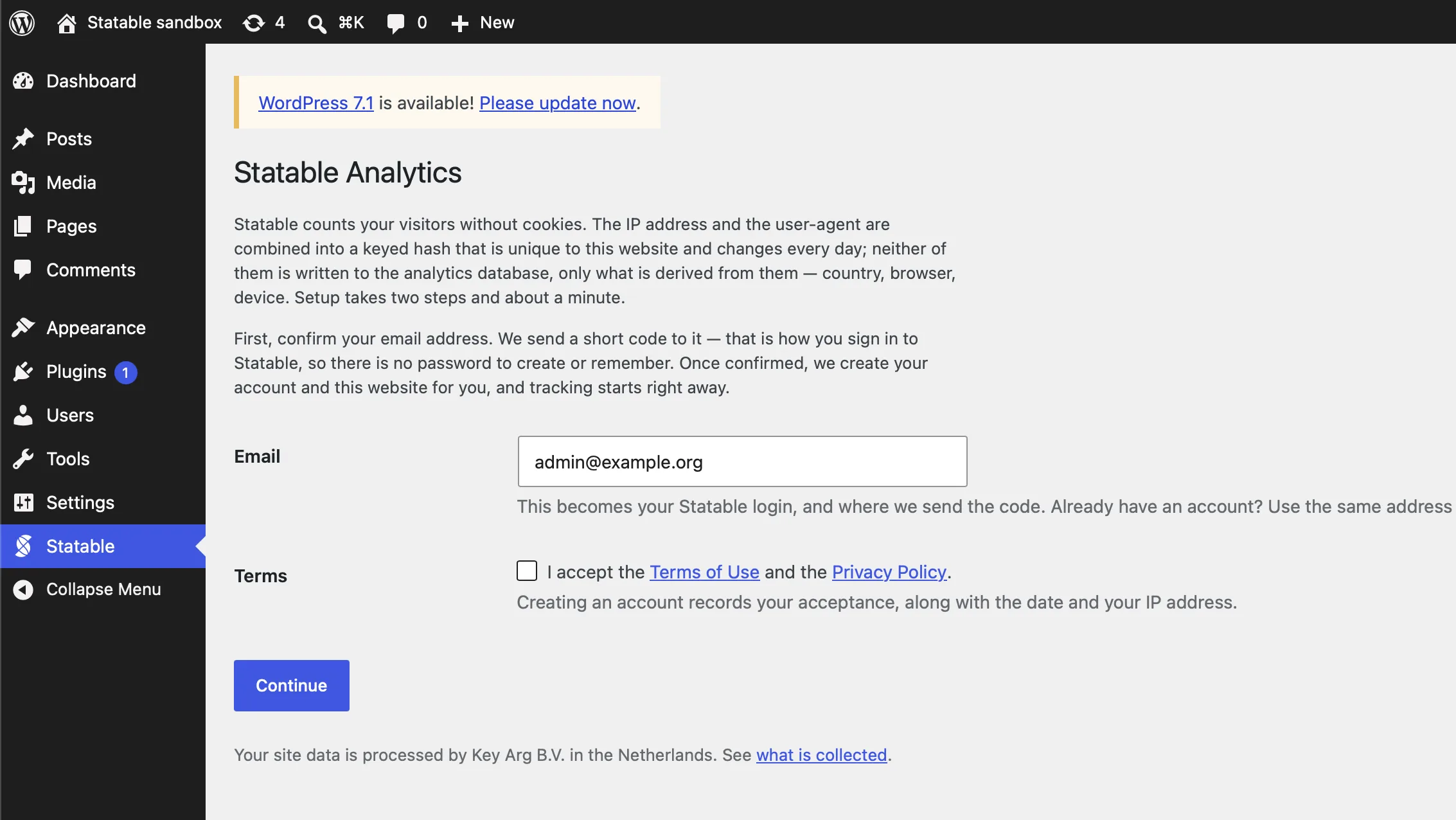
There is no Site ID to find and paste. On first open the plugin asks for your email, mails you a six-digit code, and takes it back on the same screen.
What happens when you submit the code: Statable creates your account if you do not have one, records that you accepted the Terms, returns an API key that the plugin stores in your site's database, and sets up the site using this install's URL and timezone. If that site is already on your account, connecting picks it up rather than adding a second copy of it, and if you already have an account, using the same email adds this install to it rather than starting a second one.
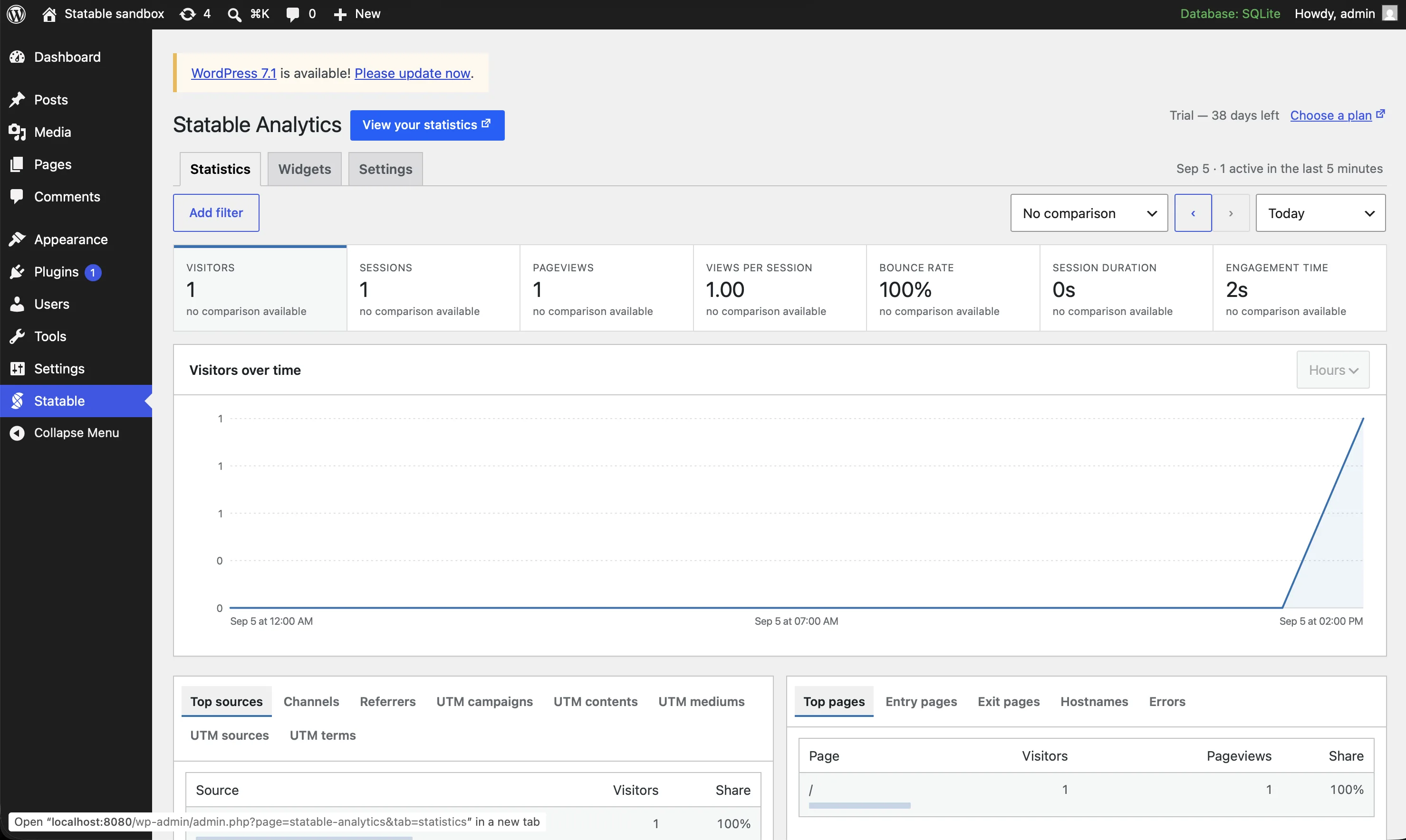
Tracking starts immediately. The plugin injects the script for you, so there is no snippet to paste and nothing to keep in sync with your theme.
Nothing yet?
A new site shows zeroes until the first visit arrives. While that is true the plugin offers a button that sends a test pageview, so you can prove the path end to end without waiting for a visitor.
Inside wp-admin
The Statable item in your sidebar is where your site's statistics live. It holds three tabs: Statistics, Widgets and Settings.
Statistics
The Statistics tab is the plugin's main screen, and it follows the dashboard closely rather than offering a reduced version of it.
The window. Today, the last seven or thirty days, a month, a custom range, and realtime. A single day is charted by the hour. The live number counts people active in the last five minutes; the Realtime period reads thirty. Any window can be compared against an earlier one, and once you do, every row shows how it moved rather than what share it holds.
The panels. Top pages, entry and exit pages, sources, channels, referrers, UTM values, countries, regions and cities, browsers and their versions, operating systems, devices, and the status codes your pages returned. Countries carry their flag, devices their icon. Ten rows to a panel, matching the dashboard.
The full list. A panel shows ten rows because that is what fits beside three others. View all opens the same query without that constraint: fifty rows at a time, every metric the breakdown carries, and a search run by Statable over the whole list rather than over the rows already on screen. Top pages, for instance, gains bounce rate, time on page and scroll depth.
The filter. The dashboard's filter, in wp-admin. Clicking any row filters the whole report by it. Filtering to one browser turns the Browsers panel into that browser's versions, and the same for operating systems.
Custom analytics. Your custom events, goals, properties and funnels, each with the place they are defined named beside them.
The metrics. Visitors, pageviews, sessions, visit duration, bounce rate, views per visit, and engagement time. Engagement time reads zero unless your tracking script includes the engagement module, and the tile says so.
Settings
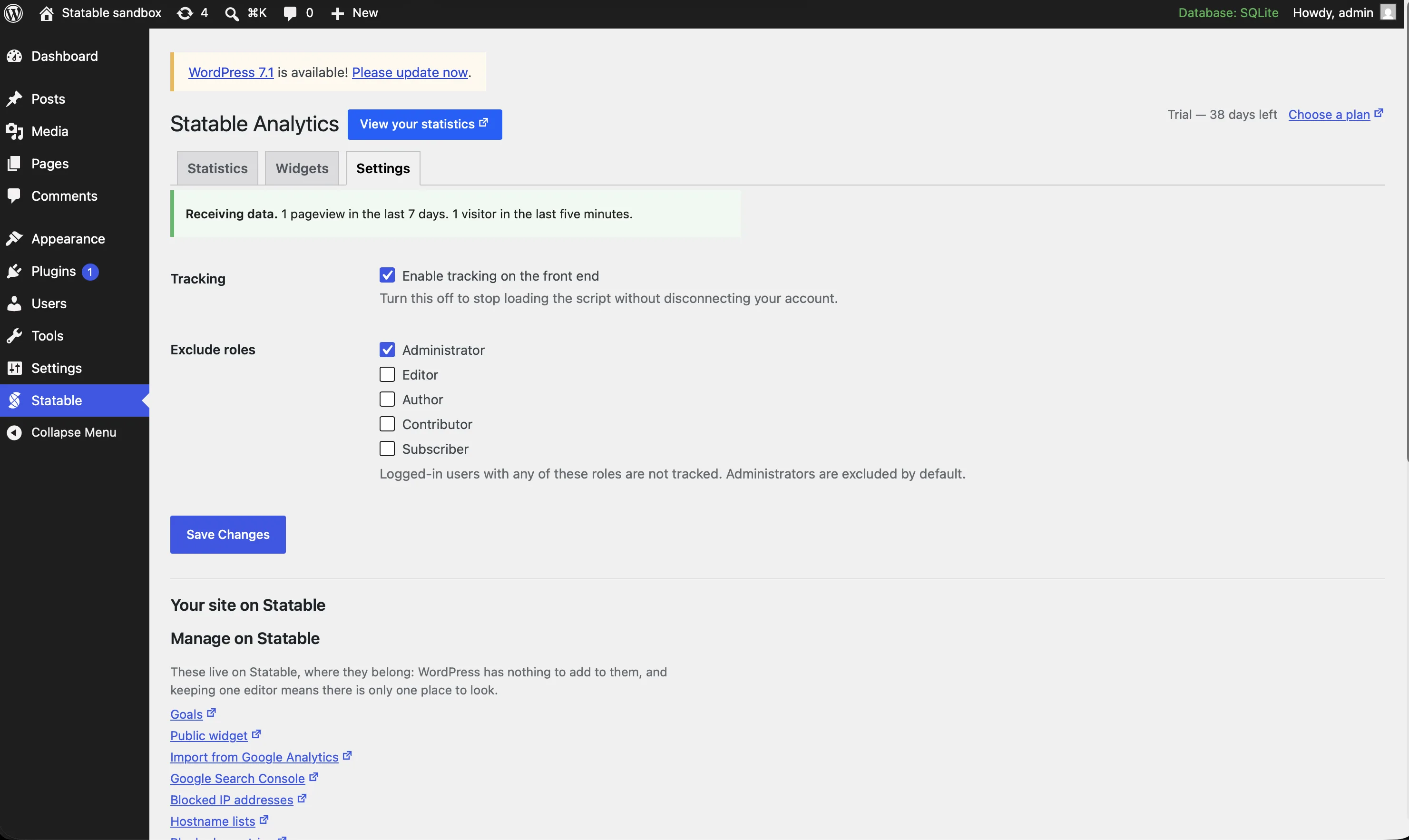
The Settings tab opens with the tracking switch and the roles you exclude, then a Your site on Statable block: the three things WordPress has something to say about, and links out for everything else.
What the script collects. The tracking modules, one by one, with what each weighs, and a switch for each. This is the answer to "why is engagement time zero" and to "what am I loading on every page", and it belongs next to the switch that loads it.
Timezone. WordPress and Statable each have one, and if they differ, every day, week and month on the Statistics tab is cut at a different hour than everything else in your admin. The plugin compares them and offers to make them match.
Hostname. If this install's hostname is not on the list Statable counts, its visits are being thrown away silently. The plugin notices and offers to add it. Localhost and bare IP addresses are not offered.
Everything else a site has on Statable — goals, widget settings, GA4 import, Search Console, blocklists, deletion — is a link into the dashboard rather than a second editor. Two places to change one value means one of them is eventually forgotten.
Connection. Which account, which site, when it was connected, and whether the site is counting: a green tick for Receiving data, an amber pause when tracking is switched off. Two different marks rather than two shades, so the state survives greyscale and colour blindness.
The block also shows when the access key runs out. Keys are issued for a year, and inside the last month the block counts the days down in red. Without that, the first sign of a key lapsing is the statistics screens going dark for no visible reason.
A lapsed key stops the reading, not the counting. The tag on your pages carries no key, so visits keep arriving at Statable while these screens go blank. Disconnect and connect again to issue a new one.
Stopping
You can stop at either of two levels, and the Settings tab keeps them apart.
Switch tracking off with Enable tracking on the front end. The script stops going out, the connection stays, and every tab says Tracking is switched off at the top with a link back to the switch. Turn it on again and counting resumes.
One exception, and the plugin says so when it applies: a widget bundle has the counter built into it, so a page showing a Statable widget keeps being counted with the switch off. Remove the widget too if you want counting to stop everywhere.
Disconnect to end the connection. This deletes the stored key and takes the tracking script off your pages, so a disconnected site stops sending visits rather than quietly reporting into an account you can no longer read. It is not account deletion and not data deletion: your account, this website and every visit already recorded stay as they are, and widgets stay in your content and start rendering again when you reconnect.
Behind a page cache the script goes with the next rebuild rather than the next page load, because cached pages keep serving the markup they were built with until the cache is purged.
Excluding yourself
Administrators are excluded from tracking out of the box. Any other role can be excluded too, and a user holding several roles is excluded if any one of them is on the list.
This is the plugin's own exclusion, by role. With a pasted snippet, use the browser flag described under Common pitfalls instead.
Another tracker on your pages
Two Statable tags on one page do not double your data. The first one the browser reaches takes the page and the second returns without sending anything, so one of the two sites gets everything and the other gets nothing. On a site tracked by hand before the plugin arrived, that is how a history breaks in two: the older tag kept the visits until today, the plugin's tag takes them from now on, and neither side shows a symptom.
The plugin looks for that. It fetches your home page the way a visitor gets it, so it finds a tag wherever it was put: a theme template, a header-scripts field, a snippet plugin, a template part. When the tag it finds belongs to another site in your account, the notice names that site and offers to count into it instead, which is the right fix when the older tag is the one with the history behind it. Otherwise remove the older tag and keep the plugin.
Two things it cannot see. A tag inserted by a tag manager is not in the page at that point, so a clean result means "nothing was found", not "nothing is there". And widgets are never mistaken for trackers, even though they carry a counter.
Widgets
The plugin can place a public Statable widget on your site: a visitor map, a 3D globe, top countries, or a live counter. Use the Statable block in the editor, or the shortcode where a block will not do:
type takes map, globe, countries or live-users. Widgets read public data, so they work on a page any visitor can see.
The block and the shortcode pass your display options through but refuse the few that would redirect the counter inside the bundle: data-tracking-api and data-before-send are dropped along with the identity attributes. Nothing written into a post can send your visitors' pageviews somewhere else.
What leaves your server, and when
The plugin talks to Statable in three separate ways.
Visitor tracking happens on your front end, in the visitor's browser, exactly as it would with a pasted snippet. No cookies, no raw IP stored.
Connecting happens once, and only when an administrator starts it: your email, then the code and your acceptance of the Terms, then this site's URL and timezone.
Reading your statistics happens only while an administrator is looking at them, using the stored key. Your site id, the chosen window and the requested metrics go out; no visitor data and no content from your WordPress site does. Answers are cached for about a minute, so a refresh does not repeat the call. Nothing is requested while a visitor loads your site.
Three settings can be written back, and never on their own: the tracking feature list, the timezone, and the hostname, each only when you press the button next to it.
The numbers themselves are Statable's, not WordPress's. Nothing is stored in your database except the connection and your settings, so uninstalling the plugin does not delete your analytics, and reinstalling it does not rebuild them from WordPress.
Option 2: Manual edit (child theme)
If you'd rather not run a plugin, add the snippet directly. Always edit a child theme, never the parent, so updates don't overwrite your changes. Block themes (FSE) support functions.php too, even though theme.json handles styling.
In wp-content/themes/your-child-theme/functions.php:
<?php
add_action('wp_head', function () {
    ?>
    <script defer src="https://statable.com/js/YOUR_SITE_ID/s.js"></script>
    <?php
}, 5);
Priority 5 runs after wp_enqueue_scripts (priority 1) but before print_emoji_detection_script (7), wp_print_styles (8), and wp_print_head_scripts (9). The tag lands near the top of <head>, ahead of most third-party output.

Option 3: Header-injection plugin
Use this when your header is already managed by a snippet plugin and you would rather keep everything in one place. WPCode – Insert Headers and Footers + Custom Code Snippets by WPCode (formerly Insert Headers and Footers by WPBeginner) is free, in the official Plugin Directory, with 3M+ active installs.
- In WordPress admin, go to Plugins → Add New.
- Search "WPCode" or "Insert Headers and Footers", click Install Now, then Activate.
- Go to Code Snippets → Header & Footer.
- Paste the snippet below into the Header box, replacing
YOUR_SITE_ID:
- Click Save Changes.
This survives theme switches and updates, and works with most caching plugins out of the box.
Legacy menu path
On older WPCode 1.x installs (or with "Headers & Footers mode" enabled in WPCode → Settings), the panel lives at Settings → Header & Footer instead.
Tracking custom events
Attach event handlers via wp_add_inline_script against a registered "dummy" handle:
<?php
add_action('wp_enqueue_scripts', function () {
    wp_register_script('statable-events', '', [], null, true);
    wp_enqueue_script('statable-events');
    wp_add_inline_script('statable-events', "
        document.addEventListener('submit', function (e) {
            if (e.target.matches('.contact-form')) {
                window.statable && window.statable.t('Contact Form Submitted');
            }
        });
    ");
});
The empty src is the canonical pattern. WordPress 5.7+ also exposes wp_print_inline_script_tag() if you'd rather skip the dummy handle and print a tag directly.
WooCommerce: track purchases
Tested against WooCommerce 9.x with HPOS (High-Performance Order Storage) enabled. wc_get_order(), $order->get_total(), and $order->get_currency() are HPOS-compatible.
<?php
add_action('woocommerce_thankyou', function ($order_id) {
    if (! $order_id) return;
    $order = wc_get_order($order_id);
    if (! $order) return;
    ?>
    <script>
      window.statable && window.statable.t('Purchase', {
        revenue: <?php echo esc_js($order->get_total()); ?>,
        currency: '<?php echo esc_js($order->get_currency()); ?>'
      });
    </script>
    <?php
});
$order->get_currency() returns the currency the order was placed in, not the active store currency. Useful if you run a multi-currency store.
Multisite networks
Each subsite needs its own Site ID, whichever route you take.
- The official plugin. It connects the one install it runs on, so a network needs a connection per subsite. The plugin does not manage a network for you.
- Header-injection plugin. Install on each subsite separately. Each instance keeps its own settings.
- Child-theme
functions.php. Branch onget_current_blog_id()to pick the right Site ID per subsite.
Verify it's working
- Open Statable Realtime in your dashboard.
- Visit any page on your WordPress site. Use an incognito window if your own browser is opted out.
- See Verify installation for full verification.
Common pitfalls
- Caching and optimisation plugins. WP Rocket, LiteSpeed Cache, FlyingPress, W3 Total Cache, and Cloudflare APO can defer, combine, or minify scripts in ways that break
data-id. Addstatable.com/js/YOUR_SITE_ID/s.jsto the plugin's "Excluded JavaScript Files" / "Exclude from Minify" / "Exclude from Combine" lists. WP Rocket: Settings → WP Rocket → File Optimization → Excluded JavaScript Files. - Editing a parent theme. Theme updates erase your changes. Use a child theme or a plugin.
- Two Statable tags at once. Installing the plugin on a site that already has a pasted snippet splits the history rather than doubling it. The plugin checks your home page and tells you, but that check reads the home page only, so remove the older snippet yourself if it lives somewhere else.
- Google Tag Manager already installed. Don't load Statable both directly and through GTM. Pick one. See Google Tag Manager.
- Multilingual plugins (Polylang, WPML). One Site ID covers all languages. The script reports the page URL, so per-language reports work via URL filters in the dashboard.
- Admin Bar pageviews. With a pasted snippet, logged-in admin sessions are still tracked: to exclude yourself, run
localStorage.setItem('analytics_ignore', 'true')once in your browser console. See Verify installation. The plugin excludes administrators by role instead, with no browser flag to set.
See also: Install the tracking script, Custom events, JavaScript API.
Ready to take control of your web analytics? Try Statable free for 30 days. No credit card required, full feature access, built for GDPR. Start your free trial or view a live demo.