Filters & segmentation
Filters narrow every metric, chart, and report to a slice of your traffic. Stack them to build segments. "Chrome users from Germany who landed on the pricing page from a Meta ad" is four filters chained together.
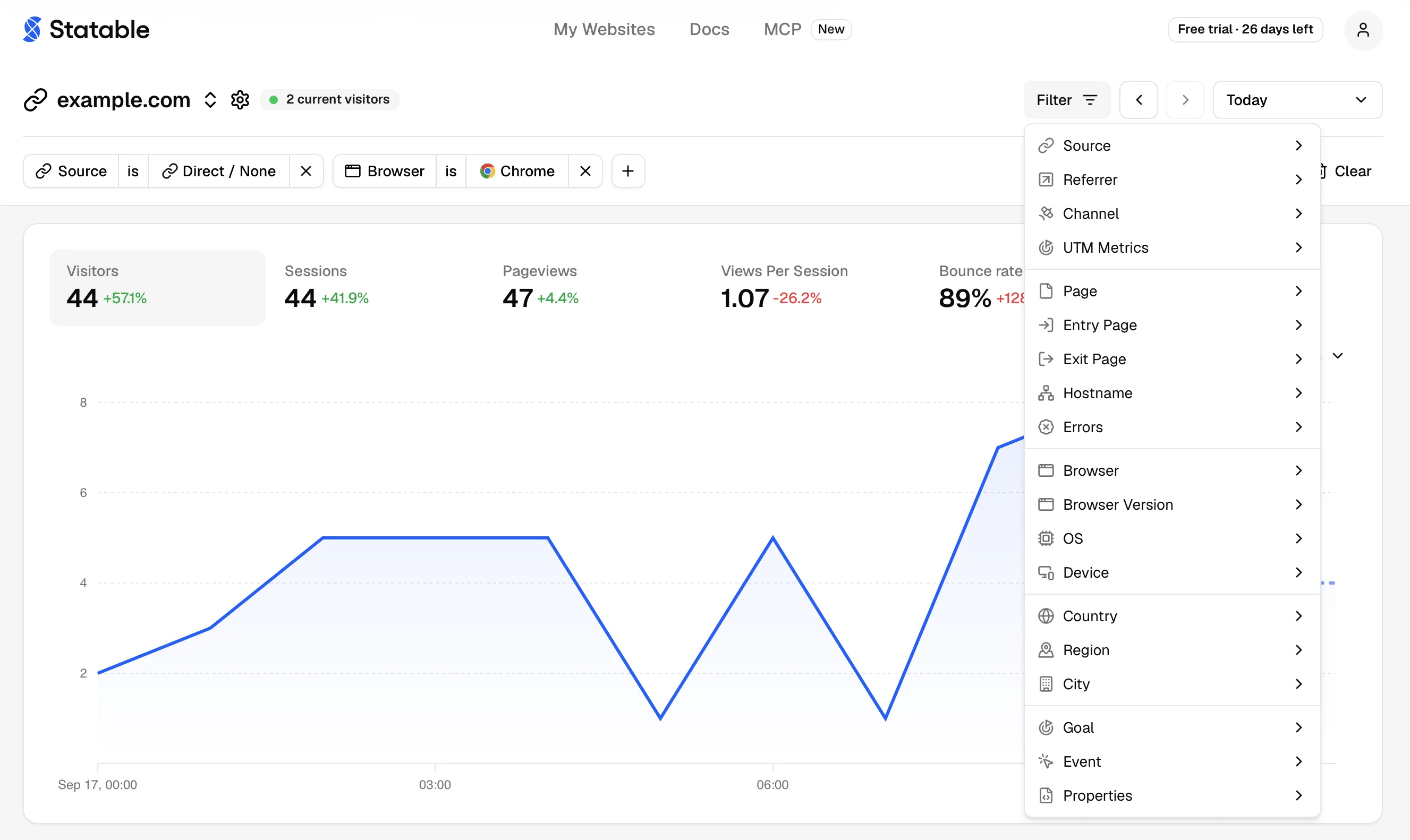
Filters live as chips above the chart. Add one by clicking Filter, clicking any row in a report or in its expanded Details view (drill-down), or editing the URL.
Filter dimensions
23 built-in filter types, plus unlimited custom-property filters that appear automatically when your tracking sends them.
- Page: Page (URL path), Entry Page, Exit Page, Hostname, Errors (HTTP status codes).
- Traffic source: Source, Channel, Referrer, UTM Source, UTM Medium, UTM Campaign, UTM Content, UTM Term.
- Device & tech: Browser, Browser Version, Operating System, OS Version, Device (Desktop / Mobile / Tablet).
- Geo: Country, Region, City.
- Conversions: Goal, Custom Event.
- Custom data: every
prop_*field your events carry. Each unique key creates its own filter automatically.
Browser Version and OS Version join the Filter dropdown once exactly one browser or operating system is chosen with is: a version number means nothing without its parent. Drilling down from the Browsers or OS tab works too.
For UTM conventions, see UTM Parameters. For channel definitions, see Channel.
Operators
Most filters support eight operators. Categorical ones are more limited, since partial matches don't make sense for them.
| Operator | Meaning | Example |
|---|---|---|
is | Exact match | Country is Germany |
is not | Exact non-match | Browser is not Chrome |
contains | Substring match | Page contains /blog/ |
does not contain | Substring excluded | Referrer does not contain internal |
begins with | Prefix match | Page begins with /docs |
does not begin with | Prefix excluded | Page does not begin with /admin |
ends with | Suffix match | Page ends with .pdf |
does not end with | Suffix excluded | Page does not end with /preview |
is / is not only: Browser, Browser Version, OS, OS Version, Device, Custom Event, Errors.
is only: Goal. It takes no negation.
All eight operators apply to every other filter.
How filters combine
Standard OR-within / AND-across:
- Multiple values inside one chip → OR. Country is
Germany,France,Spainmatches any of the three. - Multiple chips → AND. Country is
Germanyand Browser isChromematches only the intersection.
Build sophisticated segments without a query language. "Mobile users from organic Google search who hit a 404" is three chips: Device is Mobile, Source is google.com, Errors is 404.
Filter values follow the other filters. A filter offers only the values left after the chips already applied, so with Country is Germany, Region lists German regions and City the cities within them. A filter never narrows its own list. Region and City show a country flag beside each value. An empty list says why: No options in this period, or No options for these filters.
Custom Properties (prop_*)
If you send custom data with events (plan name, article category, A/B variant), each property becomes a filter automatically. Send this from your site:
Then prop_plan and prop_source_widget show up in the filter dropdown. Each supports all eight operators. The prop_ prefix avoids collisions with built-in dimensions.
For the event payload schema, see Event payload reference.
URL state
Active filters, date range, and Compare mode live in the URL querystring. Every dashboard view has a stable, copy-pasteable link.
The dashboard reads and writes a small set of query keys:
| Key | Meaning |
|---|---|
f | active filters |
p | period preset |
d | single date |
sd / ed | start / end of a custom range |
cm | compare mode toggle |
cp | compare periods |
m | active metric |
tf | timeframe (hourly, daily, weekly, monthly) |
pt / tst / tt / gt / cat | active sub-tab inside Pages / Traffic / Tech / Geo / Custom Analytics |
Because everything is in the URL you can:
- Bookmark a segment you check often.
- Share a link in Slack and have your teammate open the same view.
- Pin a tab to a public dashboard segment for one team or campaign.
Browser back/forward steps through filter history.
Saved filters
Save a filter set as a named preset. For example, Source → Google, Country → Spain, Device → Desktop. Presets are saved to the site, not just your browser, so they persist across devices and stay available to teammates who can manage the site.

Save. Build the filters you want, click Save in the filter row, name the preset (for example,
home market), then click Save filter.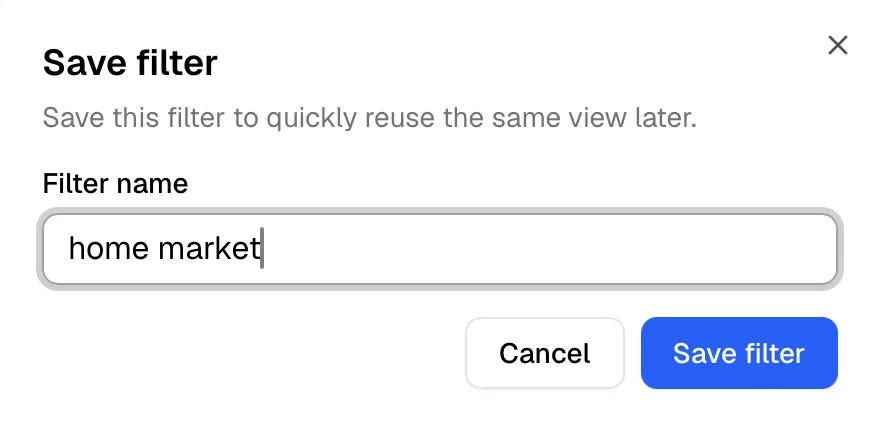
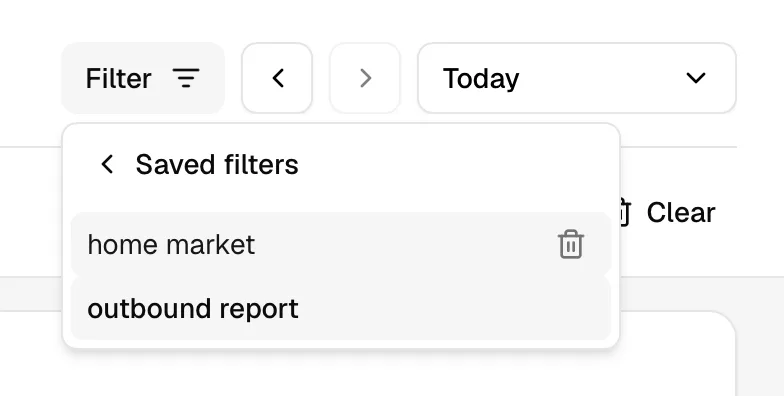
Apply. Click Filter → Saved filters and pick one. When a preset is active, its name shows in the filter row as a shortcut to the same list.
Update. With a preset active, change its filters and click Save → Update "[name]" filter.
- Save as new. Click Save → Save as new filter… to branch a modified preset into a separate one.
- Delete. Open Saved filters, remove a preset, then confirm Delete filter.
Preset names must be unique per site.
Removing filters
- One filter. Click the icon on the chip.
- All filters. Click Clear at the right of the chip row, or strip the querystring.
- The row itself. Click the same value again in any report or Details view. Its tooltip reads Remove filter while the filter is on.
- Drill-up. Use the browser back button to undo the most recent drill-down.
Filters and Compare mode
Filters apply to both periods in Compare mode. Filter to Country = Germany and toggle Compare to see Germany this period vs Germany last period.
Ready to take control of your web analytics? Try Statable free for 30 days. No credit card required, full feature access, built for GDPR. Start your free trial or view a live demo.